
 Posts
Posts


The same separation can be achieved for a wired guest LAN by using the same WLC architecture. Setting it up requires the following:
Login to the local WLC web GUI and go to Controller and then Interfaces and click New. This will bring you to the following screen where you give the Interface a name and tell it what VLAN it should be on.

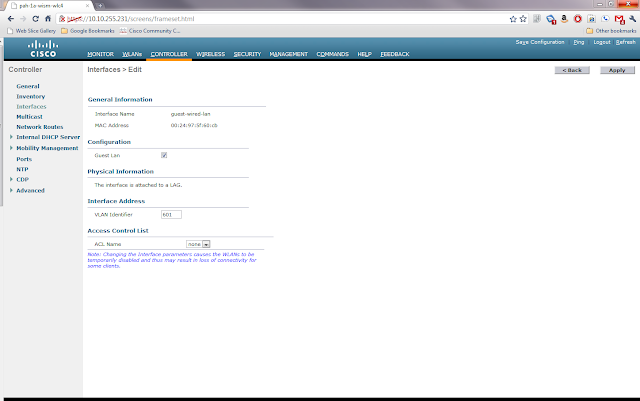
Once the information is entered, click apply. This will bring you to another settings page for the new interface. In this screen you need to click the box marked Guest LAN and then click Apply.
Now go to WLAN and then click Go next to where it says Create New. This will bring you to the following screen where you will choose type Guest LAN and give the profile a name.

Clicking Apply will bring you to the WLANs Edit screen for the new profile. Here there are a few choices to be made about security. The default is that users will need to login using web authentication if they want onto this guest network. This requires that you have either setup local usernames and passwords, perhaps through the lobby ambassador setup, or have guest accounts through AAA. For this example I will use the Web Passthrough option with makes the user accept an acceptable use policy before gaining access. On the general tab I clicked enable and chose the guest-wired-lan interface that we created earlier as the Ingress Interface.

Next I clicked on the Security Tab and Layer 3 Tab to change the Layer 3 Security to Web Passthrough. Note that you also have the ability to require web passthrough users to give you their e-mail address, but it doesn't validate it is a real address.

Once you click Apply you will be back to the WLANs list page. On the right side of the page there is a blue box with a white down arrow next to the WLAN profile we created. Hover over it and choose Mobility Anchors. Once you're in that page you will choose the IP of the foreign anchor controller from the drop down and then click Mobility Anchor Create.

This completes the configuration of the local WLC.
Configure the Anchor Controller
Login to the anchor controller and click on WLANs and then Create a new WLAN profile just like the one on the Local Controller above except that the ingress interface is None and don't click enabled. Once you click apply, go to the mobility anchors for the new profile and make sure the Switch IP Address is set to (local) and click mobility anchor create. Once you have done this, you can go back to the profile screen and check enabled.
Wrap Up
This article is a rather whirlwind how to of setting up a guest wired network using the Cisco Wireless LAN Controllers. There are many intricacies not discussed here, but there are plenty of good documents on Cisco's website about how to configure the WLCs. I do have a question for anyone from Cisco or a wireless guru. If you have multiple WLCs on the local LAN, can you have the same wired guest vlan piped to all of them or do you have to have a different vlan for each controller? If you can have the same vlan, how does the traffic know which controller to associate with?
- The WLC inside the network must have it's interface setup as a dot1q trunk to handle multiple VLANs
- UDP Port 16666 or IP Protocol 97 must be able to pass through the firewall between the inside WLC and the anchor WLC.
- A dedicated L2 VLAN for the guest wired network
- Mobility Groups are already configured on the WLCs.
- DHCP configured on the Anchor Controller
Configure the Ports
First go to the switch connected to the local WLC and do the following assuming that the WLC is connected to Gi1/0/1 and the new guest wired vlan is 601
Next go to the switch connected to the access port(s) that you want on the guest wireless and do the following:
switch#configure t
switch(config)#interface Gi1/0/1
switch(config-if)# switchport trunk allowed vlan add 601
switch#configure t
switch(config)#interface range gi2/0/1 - 5
switch(config-if-range)# switchport access vlan 601Login to the local WLC web GUI and go to Controller and then Interfaces and click New. This will bring you to the following screen where you give the Interface a name and tell it what VLAN it should be on.

Once the information is entered, click apply. This will bring you to another settings page for the new interface. In this screen you need to click the box marked Guest LAN and then click Apply.

Now go to WLAN and then click Go next to where it says Create New. This will bring you to the following screen where you will choose type Guest LAN and give the profile a name.

Clicking Apply will bring you to the WLANs Edit screen for the new profile. Here there are a few choices to be made about security. The default is that users will need to login using web authentication if they want onto this guest network. This requires that you have either setup local usernames and passwords, perhaps through the lobby ambassador setup, or have guest accounts through AAA. For this example I will use the Web Passthrough option with makes the user accept an acceptable use policy before gaining access. On the general tab I clicked enable and chose the guest-wired-lan interface that we created earlier as the Ingress Interface.

Next I clicked on the Security Tab and Layer 3 Tab to change the Layer 3 Security to Web Passthrough. Note that you also have the ability to require web passthrough users to give you their e-mail address, but it doesn't validate it is a real address.

Once you click Apply you will be back to the WLANs list page. On the right side of the page there is a blue box with a white down arrow next to the WLAN profile we created. Hover over it and choose Mobility Anchors. Once you're in that page you will choose the IP of the foreign anchor controller from the drop down and then click Mobility Anchor Create.

This completes the configuration of the local WLC.
Configure the Anchor Controller
Login to the anchor controller and click on WLANs and then Create a new WLAN profile just like the one on the Local Controller above except that the ingress interface is None and don't click enabled. Once you click apply, go to the mobility anchors for the new profile and make sure the Switch IP Address is set to (local) and click mobility anchor create. Once you have done this, you can go back to the profile screen and check enabled.
Wrap Up
This article is a rather whirlwind how to of setting up a guest wired network using the Cisco Wireless LAN Controllers. There are many intricacies not discussed here, but there are plenty of good documents on Cisco's website about how to configure the WLCs. I do have a question for anyone from Cisco or a wireless guru. If you have multiple WLCs on the local LAN, can you have the same wired guest vlan piped to all of them or do you have to have a different vlan for each controller? If you can have the same vlan, how does the traffic know which controller to associate with?

